.svg "ConversionCrew_color (1)")
.svg "ConversionCrew_white (1)")

At Conversion Crew, we know better than anyone how quickly HubSpot continues to evolve. New features, improvements, and product updates follow each other in rapid succession.
To ensure that you always stay informed about the developments that really make a difference, we will now share a monthly overview of the most important HubSpot updates. This way, you can effortlessly stay up to date and get the most out of your HubSpot environment!

Update 2: Date Fields as Triggers for Conditional Property Logic
Update 3: WhatsApp Home
Update 4: The AI-First Workspace for Projects and Customer Operations
Update 5: Define Your Own AI-Driven Purchase Signals
Update 6: Revamped Microsoft Teams Integration
Update 7: Instagram Collaborator Tagging in the Social Media Tool
Update 8: Connect the AI Customer Agent to Slack, SMS, Instagram, and External Channels
Update 9: The Classic Theme Will Be Discontinued on August 31
Update 1: Use Newly Created Records Immediately Further Down in the Same Workflow
Eliminate fragmented processes by immediately reusing the data and properties of newly created objects in subsequent workflow actions.
Previously, advanced automation processes in HubSpot often hit a snag due to logistical hurdles. If you automatically created a new contact or deal within a business workflow, you couldn’t immediately use that specific new CRM record in the subsequent steps of the same workflow. You were forced to build a completely new, separate workflow to continue the process. This fragmented your processes across dozens of separate flows, increased the risk of data errors, and made management difficult for RevOps.
With this update, HubSpot introduces Action Data within workflows. If you create a record in the middle of a flow, HubSpot immediately recognizes it as a usable data source for all subsequent steps. You can immediately use the specific properties of that new object to send personalized notifications, create tasks, or segment the lead right away. This results in compact, powerful workflows and centralized process logic.
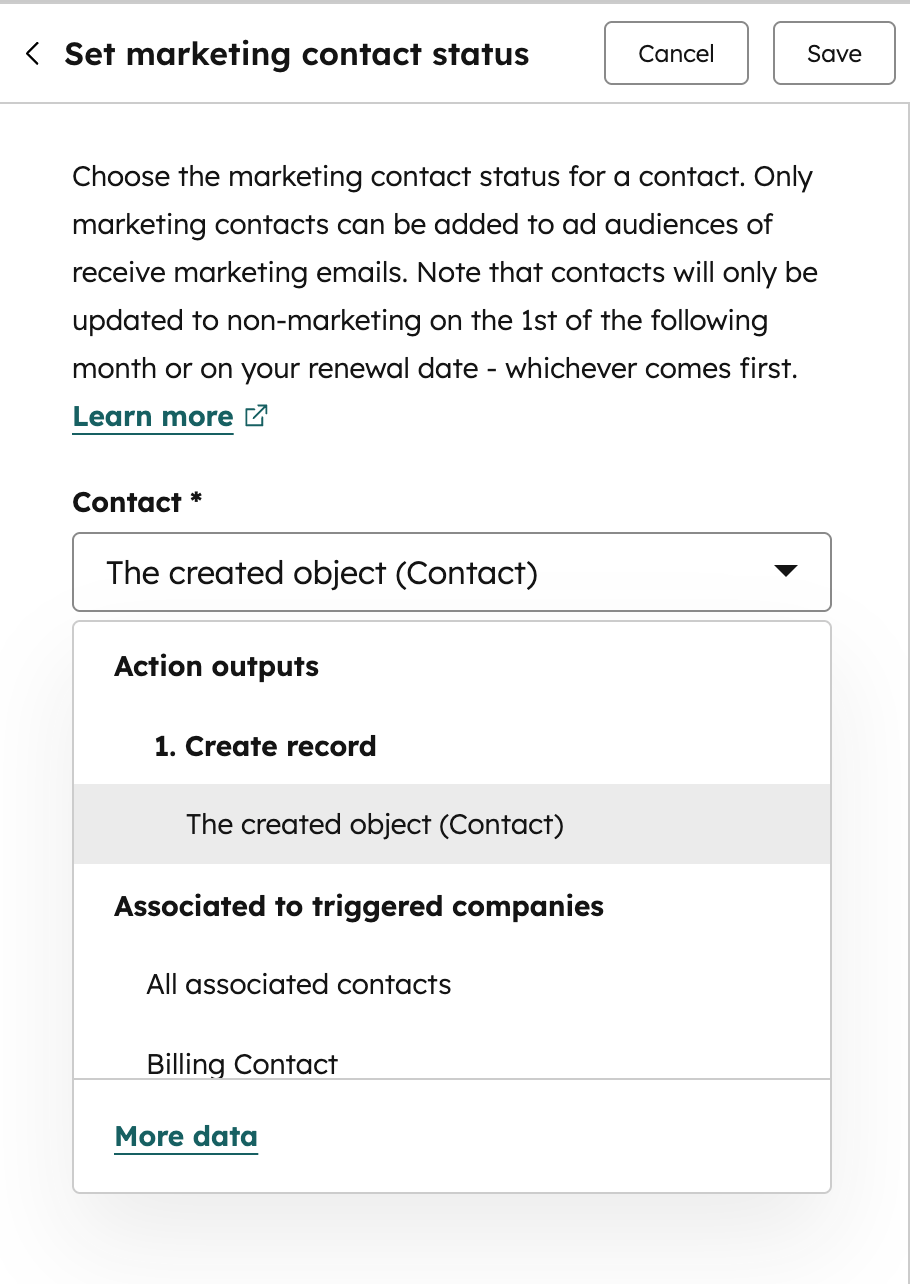
This feature integrates seamlessly into your existing workflow canvas:
- Create a record: Add an action such as “Create Record” (e.g., create a Contact or Deal) or “Create Task” to your workflow.
- Reuse data: In a subsequent action (such as an internal notification or task assignment), click the field you want to personalize.
- Select Action Data: The new “Action Data” option now appears in the right-hand data panel. Select the specific “Create Record” step and choose the property tokens of the object you just created to dynamically load the data.

Update 2: Data Fields as Triggers for Conditional Property Logic
Keep your CRM records clean and relevant by automatically displaying or making fields required based on specific dates and times.
Many workflows for sales, onboarding, and support teams are time-sensitive. Previously, however, it wasn’t possible within HubSpot to display or make fields required based on a date field. This meant that employees either had to manually remember when to enter certain information or were overwhelmed with reminder tasks.
With this update, date-driven conditions solve that problem. From now on, your CRM records will dynamically display the correct fields at the exact moment they become relevant. For example:
- Sales: A “Renewal Terms” field only appears on the deal card once the contract end date is known.
- Onboarding: The “Kick-off Notes” property becomes required only once the project start date has been entered.
- Operations: A “Reason for Delay” field becomes required immediately once the deadline for a task or deal has passed.
This prevents a proliferation of unnecessary input fields on your CRM cards, reduces the administrative burden on your team, and ensures significantly higher data integrity.
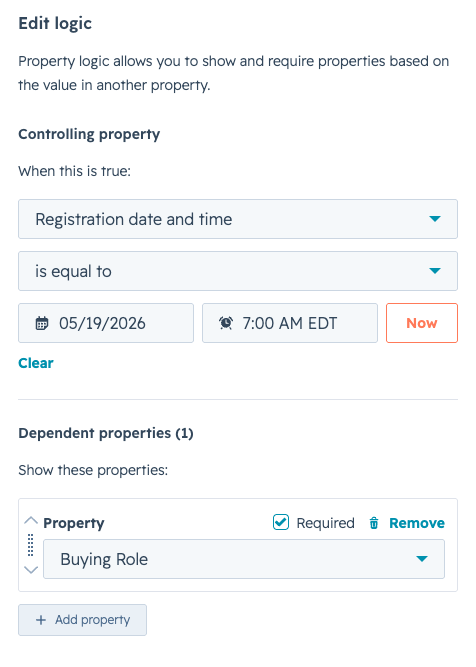
Setup is done through your properties’ central settings:
- Navigation: In HubSpot, go to Settings (gear icon) > Data Management > Properties.
- Conditional logic: Select the desired object (e.g., Deals or Companies) and click the Conditional logic tab.
- Set up a condition: Click Create logic and select a date or datetime field as the controlling property.
- Build logic: Set your condition (e.g., is known, is before, or is after a specific date) and specify which dependent fields should be displayed or made required. Save the logic.
Available for all Professional & Enterprise tiers of all HubSpot Hubs (Smart CRM, Marketing, Sales, Service, Operations/Data, and Revenue Hub).
Update 3: WhatsApp Home
Maximize your conversational commerce and eliminate friction with a dedicated WhatsApp dashboard, comprehensive template management, and in-depth reporting.
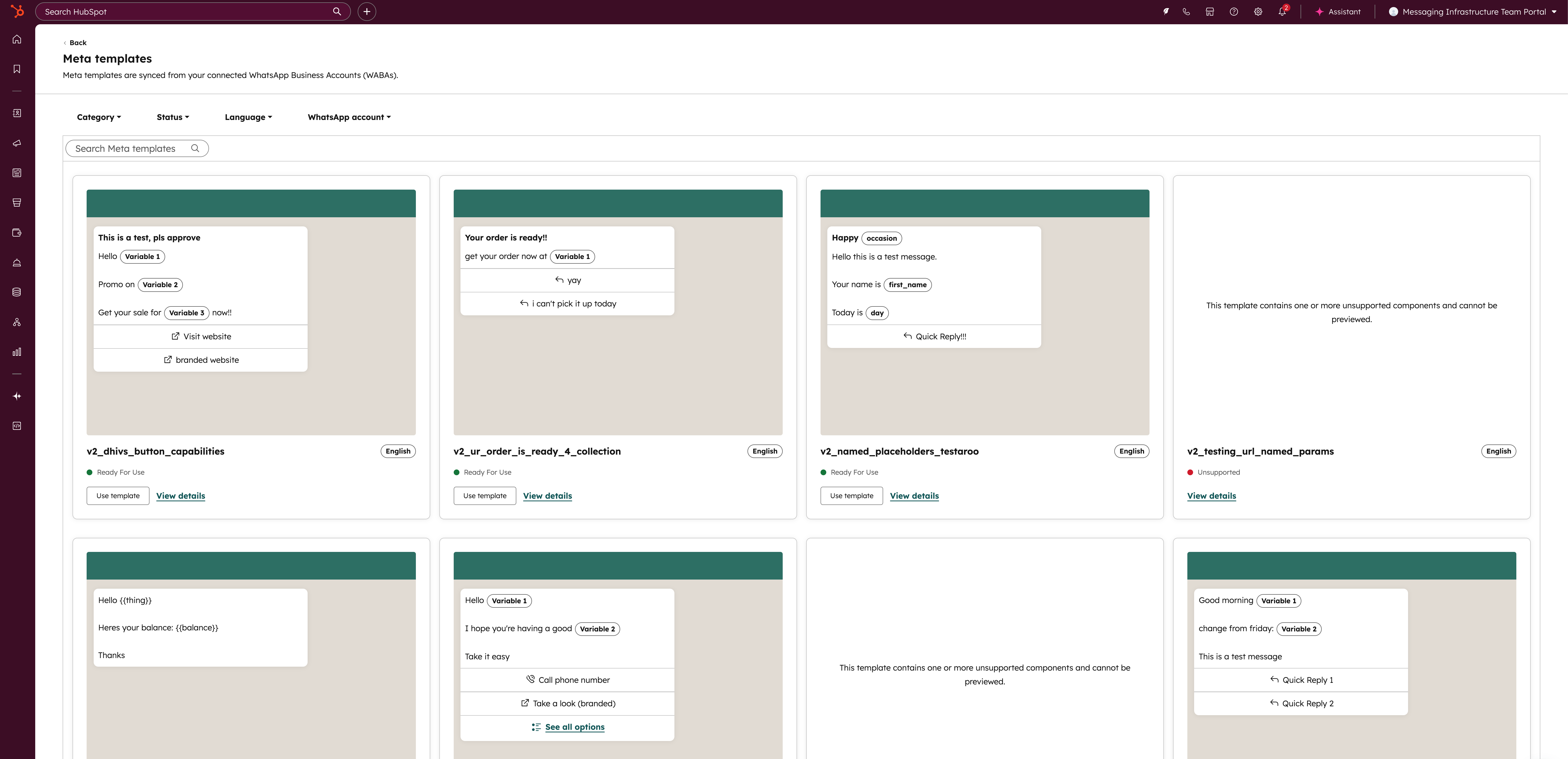
Once the update is active in your portal, you’ll find a completely revamped menu structure under your CRM tab:
- WA Messaging Management: The new home page for centrally managing all your daily WhatsApp conversations and settings.
- Revamped Template Management: Get an instant overview of the approval status of every WhatsApp template. Thanks to granular filters, you can quickly select and filter templates by message type, team, WhatsApp Business Account (WABA), or status.
- Comprehensive Reporting Suite: Analyze the hard ROI of your WhatsApp efforts. The reports show real-time data on delivery, engagement, click-through rates (CTR), opt-outs, and an in-depth analysis of messaging errors to resolve failed deliveries immediately.
Update 4: The AI-First Workspace for Projects and Customer Operations
Bring internal coordination around client engagements, launches, and ABM plans directly into your CRM and let AI agents take over the heavy operational work.
Much of the work surrounding customer relationships—such as onboarding new customers, coordinating marketing campaigns, or setting up a deal desk —still takes place outside of HubSpot. Teams use standalone project tools like Asana, Monday, or Notion. When this operational work is disconnected from your customer data, context is lost, handoffs fail, and AI agents can’t take strategic work off your hands.
With HubSpot Teamwork, HubSpot is introducing an AI-first workspace that brings this work directly into your Smart CRM. Because projects and tasks are directly linked to your contacts, deals, and campaigns, context is always preserved. Plus, AI agents can take over routine tasks—such as setting up reminders, generating weekly summaries, and answering operational questions—so your team can focus entirely on the customer.
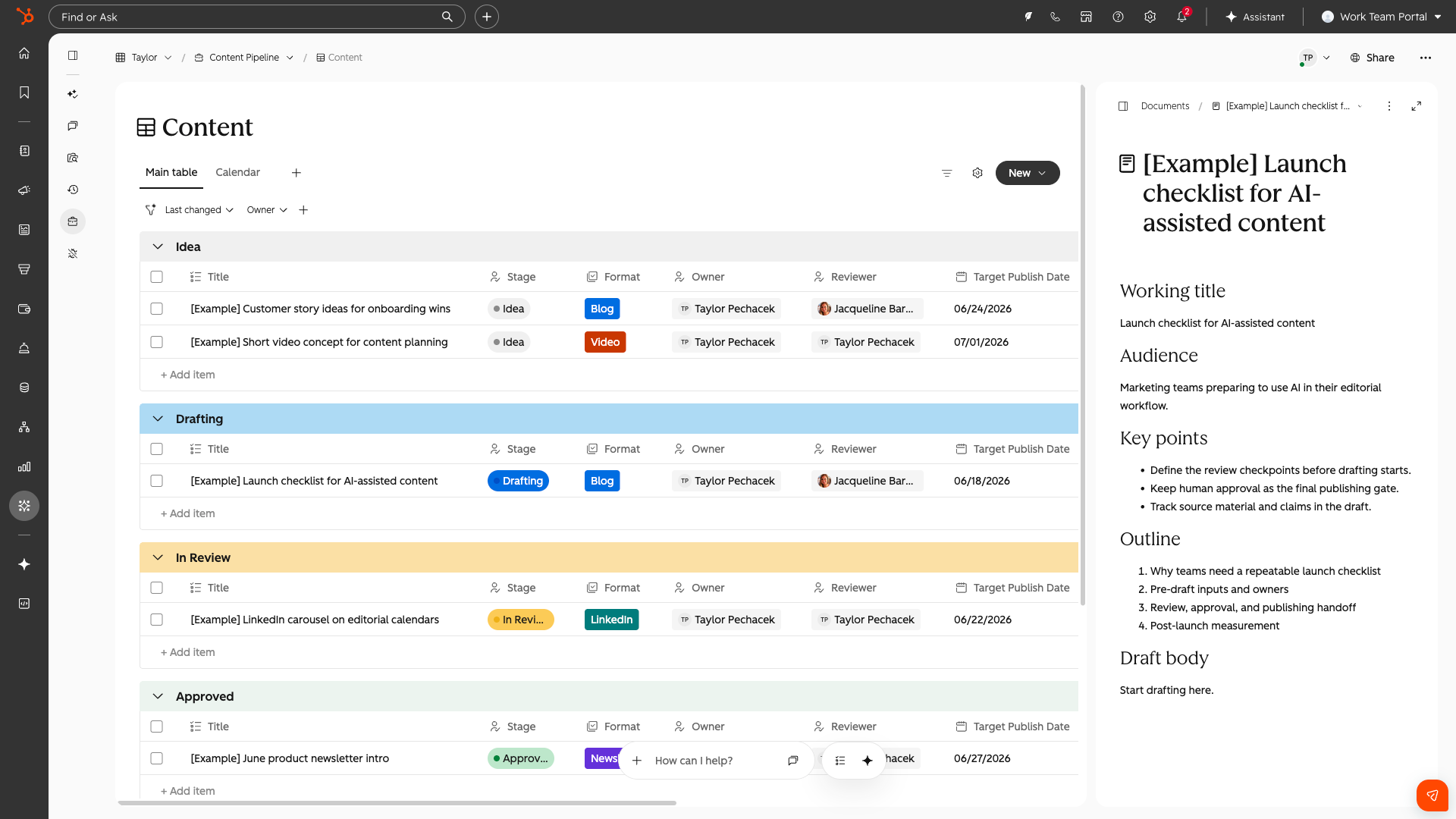
- AI-Driven Project Creation: Describe what you want to build in plain language. The AI instantly generates the entire structure: data tables, columns, intake forms, and agents that set reminders or provide weekly updates.
- Direct CRM & Web Connection: The built-in agents not only have access to your Teamwork environment, but also pull live data from your HubSpot CRM and can perform real-time web searches.
- Ready-to-Use Templates: Get started right away with pre-built scenarios from the use case library, such as:
- Client onboarding
- Marketing webinar planning and coordination (Event coordination)
- Targeted account action plans (ABM action plans)
- Deal desk and internal coordination (Complex sales hand-offs)
Update 5: Define Your Own AI-Driven Buying Signals
Set aside manual prospecting and never miss a business opportunity by setting up personalized, niche-specific buying signals using natural language.
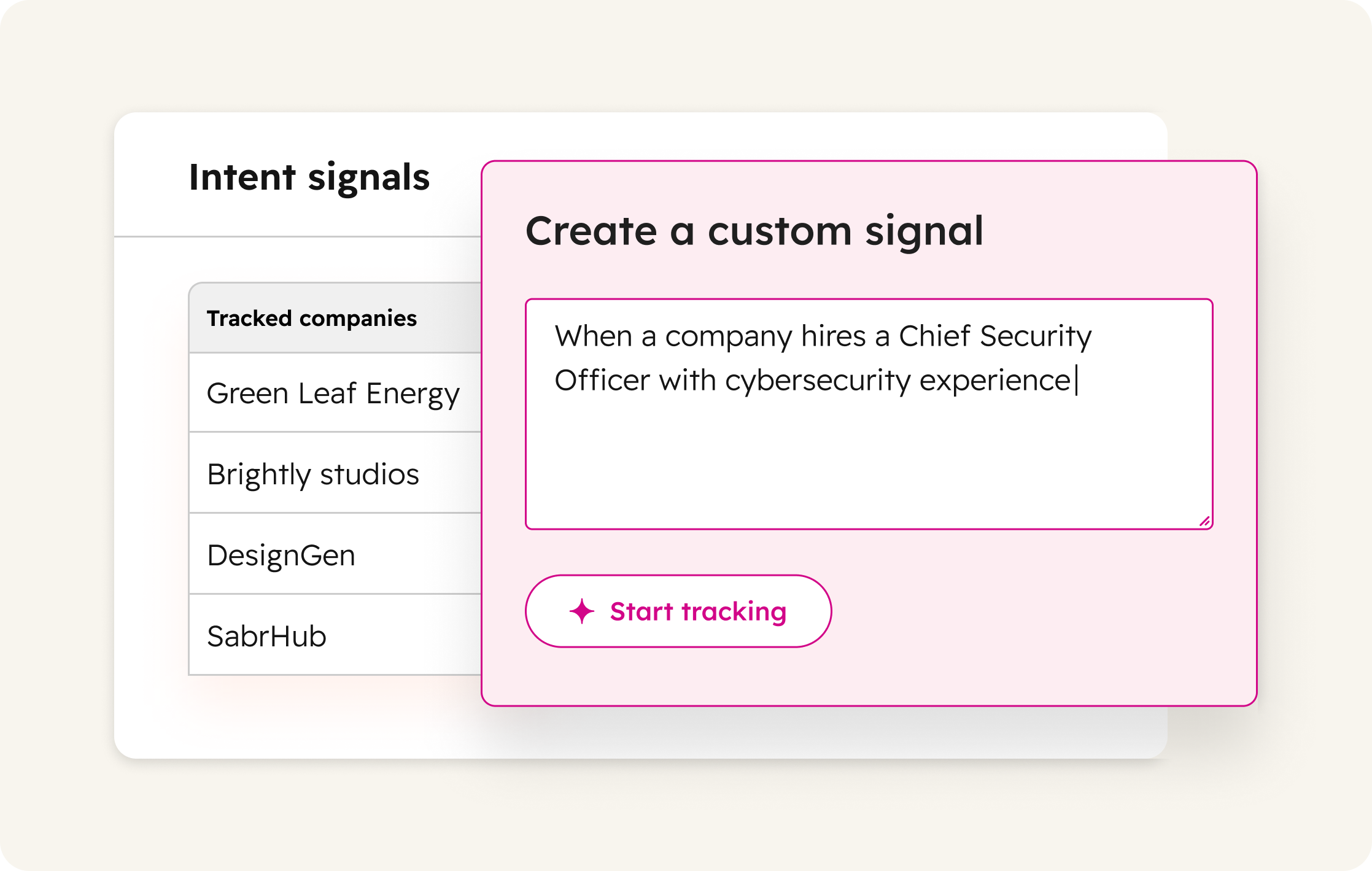
You set up your own signals via the Signals tab within the Buyer Intent environment under My Signals:
- Natural Language Prompting: Describe what you’re looking for in logical sentences (e.g. , “Startups that have raised Series A funding and explicitly mention sustainability on their homepage” or “Companies submitting an RFP for IT outsourcing”).
- AI Suggestions: Get instant recommendations for signals that match your company profile and Ideal Customer Profile (ICP).
- Testing & Validation: View a live preview of companies that currently match your prompt to test accuracy before activating the signal.
- Full Source Attribution: Every detected signal comes with transparent source attribution and clickable references, so your sales team knows exactly why and where the trigger was activated.
Update 6: Revamped Microsoft Teams Integration
Boost internal efficiency by sending workflow notifications directly to individual Teams users and automatically logging complex group calls in a comprehensive manner.
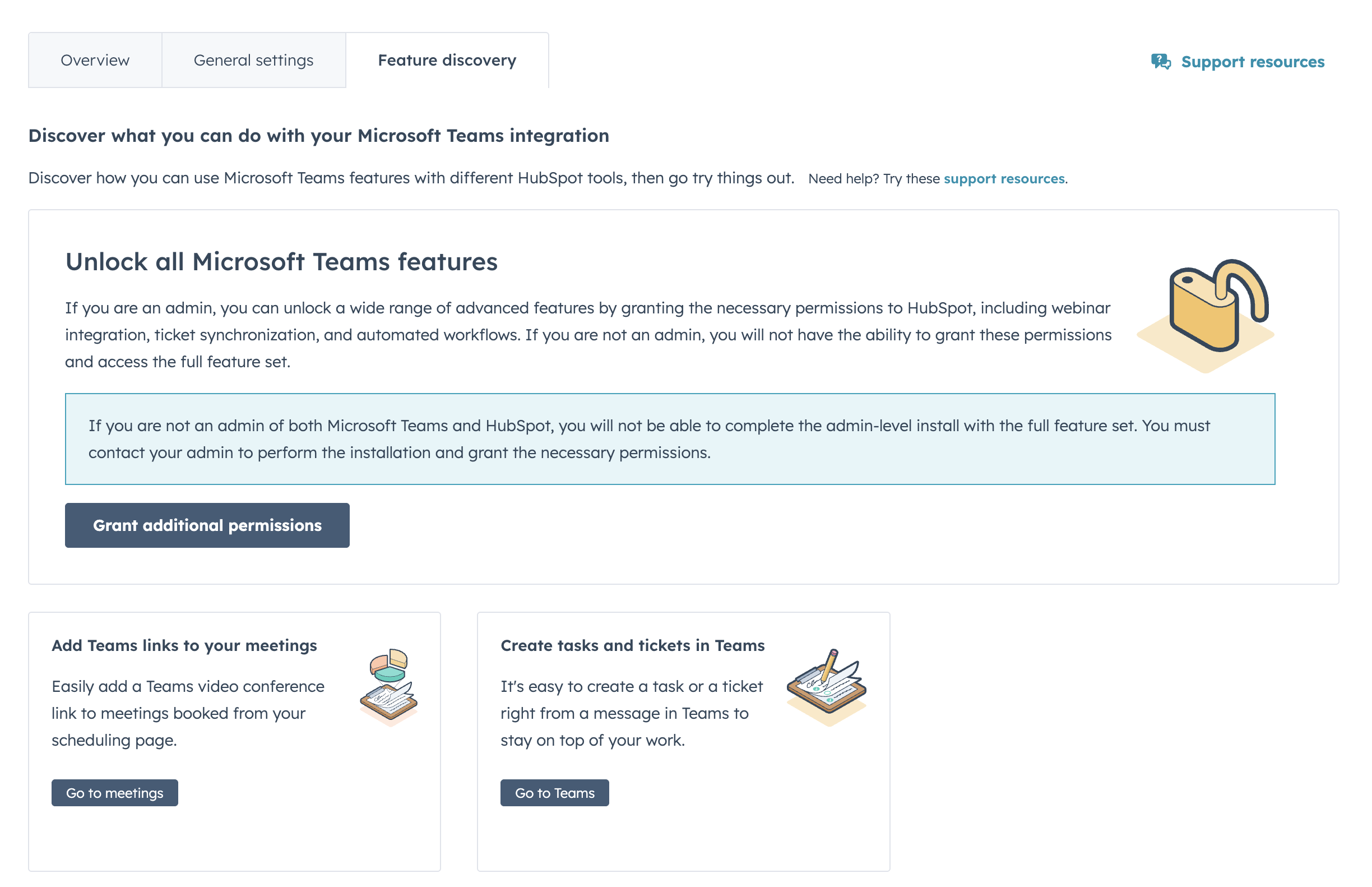
The new features are immediately available within your portal:
- Personalized Workflows: In the Workflow Builder, under the “Send Teams notification” action, select a specific person instead of a channel. This now works in an object-agnostic way (for example: ping a project manager as soon as a ticket from a VIP customer is escalated).
- Multi-Participant Logging: Are you on a Teams call with three different stakeholders? HubSpot recognizes the participants and automatically associates the call log, notes, and follow-up tasks with all three contact records in your CRM.
- Frictionless Upgrade: Did your team previously use a user-level license for the app? Admins can now upgrade the integration to a central admin-level installation in the settings with a single click, without having to disconnect the integration first.
Available for all Hubs and subscription tiers (some workflow features require a Professional or Enterprise license).
Update 7: Instagram Collaborator Tagging in de Social Media Tool
Maximize the organic reach of your co-marketing and partnerships by scheduling Instagram collabs directly from HubSpot.
Why This Matters
Collaborations with partners, influencers, or employees are essential for your organic reach, but executing them often caused friction for marketing teams. Because HubSpot’s social tool previously didn’t support Collaborator Tags, marketers had to manually post directly to Instagram outside the CRM. This meant you lost the central overview in your marketing calendar.
With this update, you can publish and schedule Instagram collabs entirely natively within HubSpot. A collab post appears simultaneously on both your profile and your partner’s. This means your content immediately benefits from your partners’ algorithms and follower bases, leading to an exponential increase in brand awareness and engagement—without ever having to leave your central marketing dashboard.
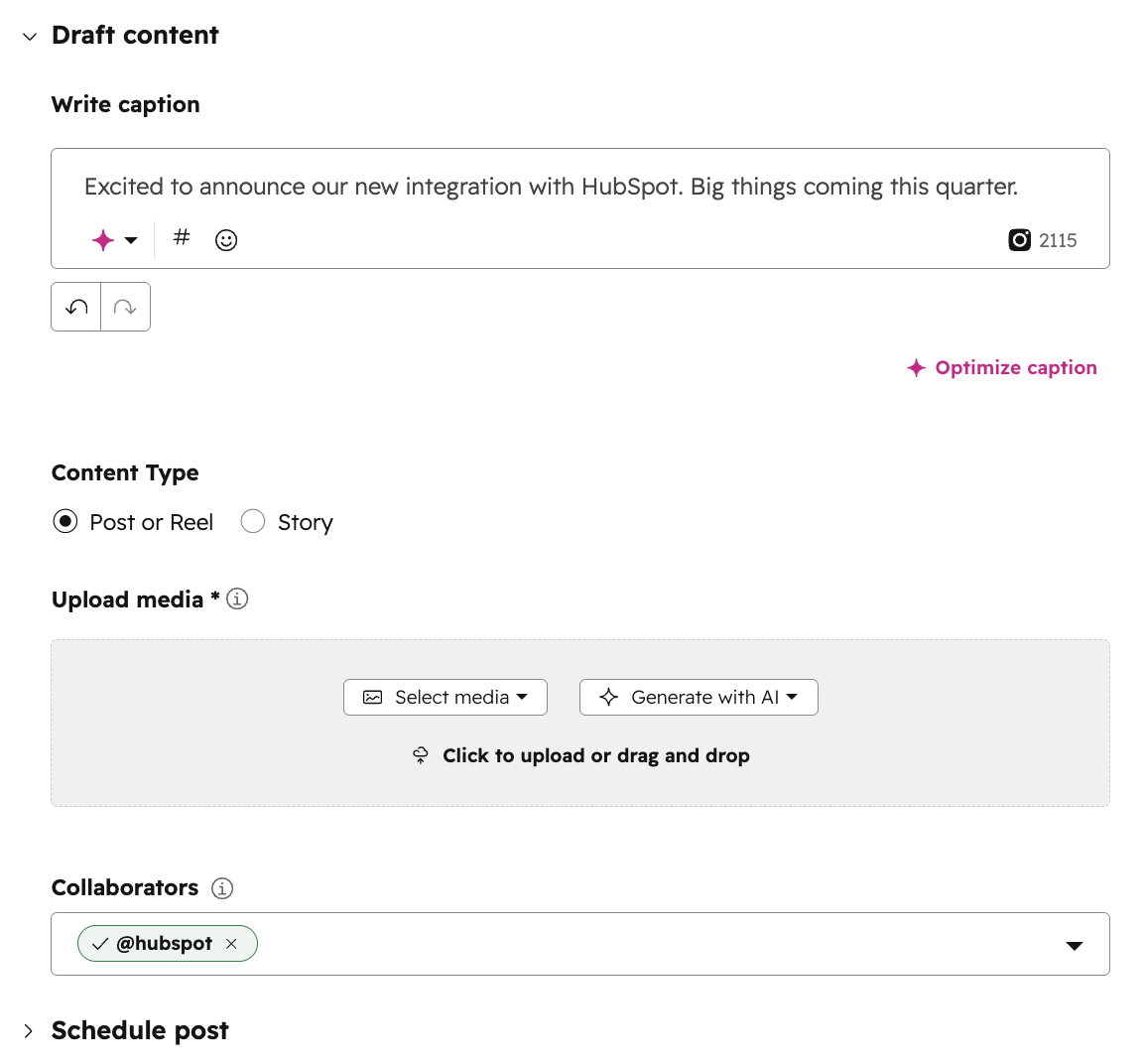
Tagging co-authors is directly integrated into the existing Social Composer:
- Tagging: While creating an Instagram post (feed post, Reel, or carousel), you’ll see the new “Collaborators” field below the text field. You can tag up to three collaborators.
- Real-Time Validation: As soon as you type an Instagram handle, HubSpot verifies it in real time with Instagram. You’ll immediately see the profile picture and status, so you can be sure you’re selecting the right account.
- Publish & Invite: Schedule the post or publish it immediately. Once the post is published, Instagram automatically sends an invitation to the collaborators. As soon as they accept, the collaboration goes live.
⚠️ Important requirements: The partners you tag must have a public Business or Creator account on Instagram. This feature works for regular posts, Reels, and carousels, but isn’t available for Stories.
Update 8: Connect the AI Customer Agent to Slack, SMS, Instagram and External Channels
Deliver a scalable omnichannel support experience by deploying the native AI service agent (Breeze) directly across all your external communication channels.
To provide the best possible support to customers, you need to be present on their favorite platforms—whether that’s SMS, Instagram, Slack, or Telegram. Until now, the use of HubSpot’s autonomous AI service agent (Customer Agent) was limited to the channels that HubSpot manages itself (such as live chat, email, and WhatsApp). As a result, support teams still had to respond manually on external channels, leading to slow response times and fragmented customer experiences.
With the introduction of the Custom Channels API HubSpot solves this. You can now assign the Customer Agent to virtually any external messaging channel. The AI autonomously answers questions based on your knowledge base, directly within the customer’s channel, while the ticket is managed centrally and comprehensively in your Help Desk or Inbox. This drastically reduces the workload on your support staff and guarantees a 24/7 response time.
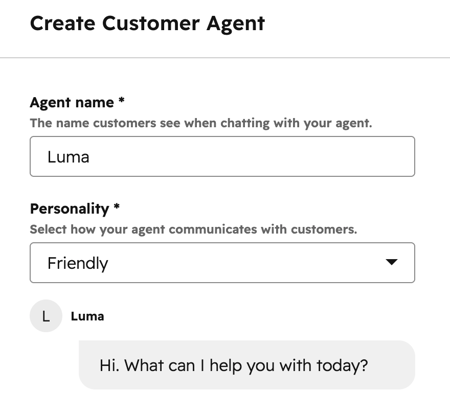
Setup is done through the Customer Agent integration settings:
- Connect a channel: Install a supported app from the HubSpot App Marketplace (or build your own integration using the Custom Channels API). Navigate to Settings > Inbox & Help Desk > Channels and add the external channel via “Connect a Channel.”
- Assign AI Agent: In HubSpot, go to Service > Customer Agent and open the Manage tab.
- Deployment: In the left-hand menu, click Deployment > Channels, and select Deploy agent in the top-right corner. Use the dropdown to select the connected Help Desk or Inbox environment, and assign the Customer Agent to the desired external channel.
Availability📊 Note: Deploying the Customer Agent live and having it respond on these channels consumes HubSpot credits.
Available to users of Service Hub Professional & Enterprise and Sales Hub Professional & Enterprise (Customer Platform licenses with access to HubSpot credits).
Update 9: The Classic Theme Will Be Discontinued on August 31
Prepare your portal for the switch to HubSpot’s sleeker, modern user interface (UI) before the transition takes place automatically.
Why This Is Important
A smooth marketing and sales operation depends entirely on your team’s adoption of the software and how quickly they adapt to it. HubSpot is rolling out a completely new default theme with a more modern, cleaner interface that reduces visual clutter. The most important aspect of this update is the deadline: on August 31, the classic theme will be permanently phased out (sunset).
As an organization, you want to avoid your team suddenly having to adjust to a revamped interface on August 31 while daily sales and support pressures are high. By switching to the Public Beta now, you give your employees the opportunity to get used to the new button structure and navigation layout at their own pace. This prevents operational disruptions or loss of productivity after the final deadline.
Here’s how it worksThe new theme is currently available as an optional Public Beta within your portal:
- UI refresh: As soon as you activate it, the layout and visual design will transform into a more modern UI that loads faster and is organized more logically.
- Early migration: You can manually switch to the new theme in the settings to test the interface.
- Automatic transition: If your team does not take any action by August 31, HubSpot will automatically and permanently switch the portal to the new theme on that date.
 Get more out of
Share this

HubSpot Product Updates: February 2026
HubSpot Product Updates: May 2026